A Beginner’s Guide to Cinny and the Matrix Protocol
Ce post est aussi disponible en Français
Following Discord’s announcement that age verification would be rolled out across the platform, raising significant concerns about privacy as well as freedom of expression and association online, many users have begun migrating to alternatives they hope will be safer and more respectful. Among the wide range of available options, one name has consistently resurfaced over the years: Matrix. In many ways, this competitor offers a direct response to the issues created by the concentration of power in the hands of Big Tech. Let’s take a closer look.
What Is Matrix?⌗
Matrix is an internet communication protocol created in 2014. Published under an open-source license, it provides a wide range of features covering most of Discord’s core functionality, including text, voice, and video chat rooms, private messages, contact management, and the creation of communities grouping multiple rooms.
However, Matrix differs from Discord in how it operates and is structured. While Discord is a closed platform whose servers are owned by a single company and are incompatible with third-party services, Matrix is a standardized communication protocol. This means that multiple servers and applications operated by independent entities can communicate with each other using Matrix technology.
In practice, this means that when creating an account, instead of signing up for a centralized platform owned by a large corporation like Discord or Microsoft, you can register with any provider that supports the Matrix protocol. The Matrix network is therefore decentralized: no single individual or organization can control or impose decisions on all users, since all servers on the network, called homeservers, operate independently.
While this approach has the major advantage of preventing the kind of unilateral decision-making recently illustrated by Discord, it may seem limiting at first glance: if I am registered on homeserver A and my friend is on homeserver B, can we communicate? Fortunately, Matrix is also built on federation, meaning that homeservers can communicate with one another, allowing users to access the entire network from a single account. Although not every homeserver participates in the wider federation, choosing one that does at registration ensures full access to the broader Matrix network. See it as similar to emails: one can sign up with any one email provider, but still be able to reach out to people using another email provider.
Matrix’s response to the pitfalls of Big Tech platforms is therefore simple: a decentralized network of independent providers, connected through federation, allowing users to communicate across the entire ecosystem. No single authority can impose a decision or practice on everyone. If you are unhappy with your provider, you can simply migrate your account to another.
The Vast World of Matrix Clients⌗
As mentioned earlier, Matrix is only a protocol. To access the network, you must register with a provider and use a Matrix client, that is, an application that allows you to use Matrix in your daily life.
Imagine receiving a video call link and being able to choose which software to open it with: Zoom, Jitsi, Teams, or another option entirely. That’s how Matrix works. As an open-source ecosystem, Matrix stands out for its compatibility with a wide range of clients, giving you the freedom to choose the application you prefer.
Among the many clients available, let’s focus on those offering an experience close to Discord’s. In our previous post with Younès, we introduced Element. Here, I’d like to take a closer look at another option currently under development: Cinny.
Cinny⌗
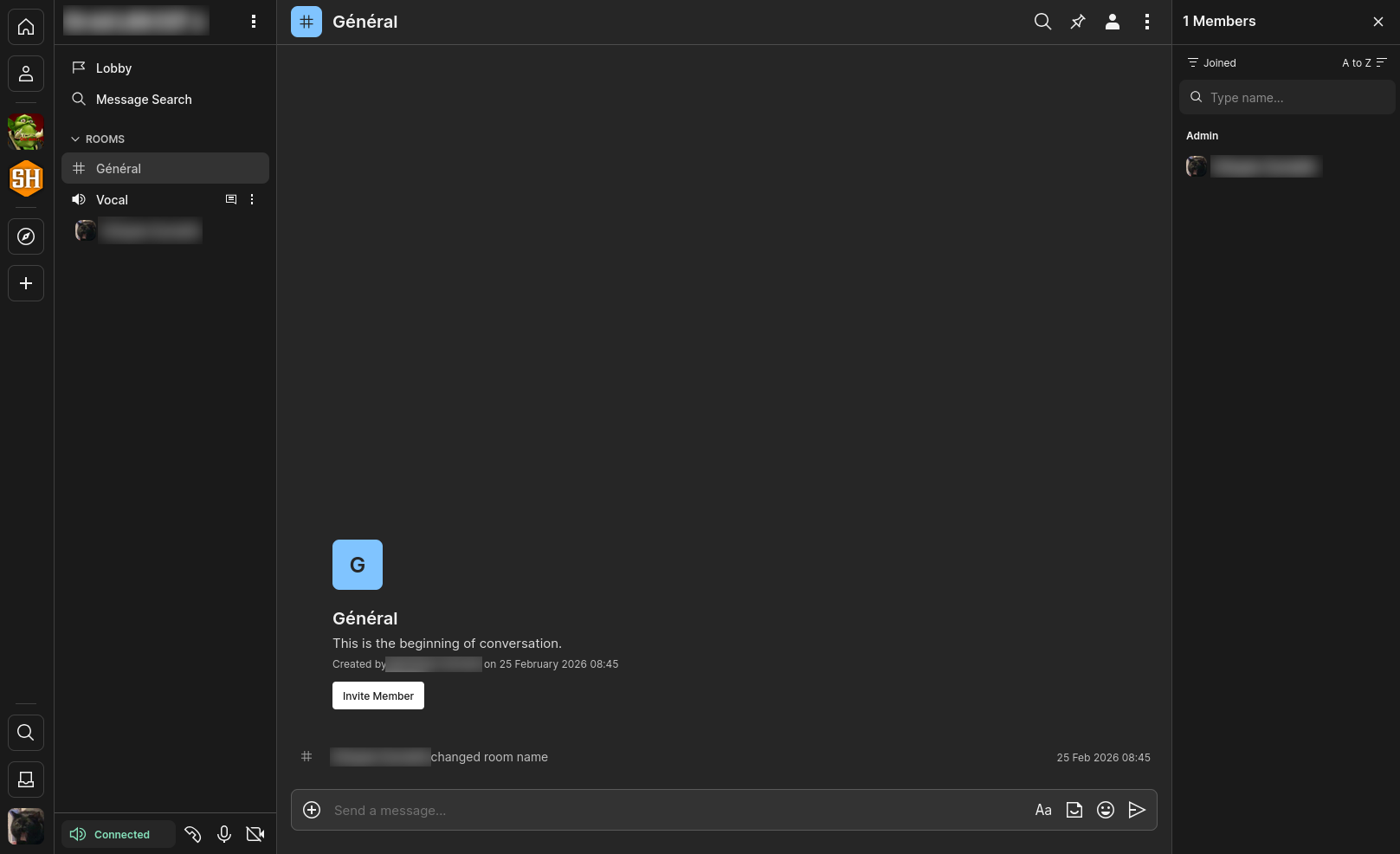
Cinny is a Matrix client still under active development. At present, only the web version supports voice channels, and only in an experimental build (you can access an instance of this experimental build hosted on my server at https://cinny.whydoesit.work). An installable desktop version is also available, though it does not yet support voice channels.
Its interface is arguably the most “Discord-adjacent” among functional Matrix clients, making the transition smoother for users migrating from the platform.
Getting Started: Creating an Account⌗
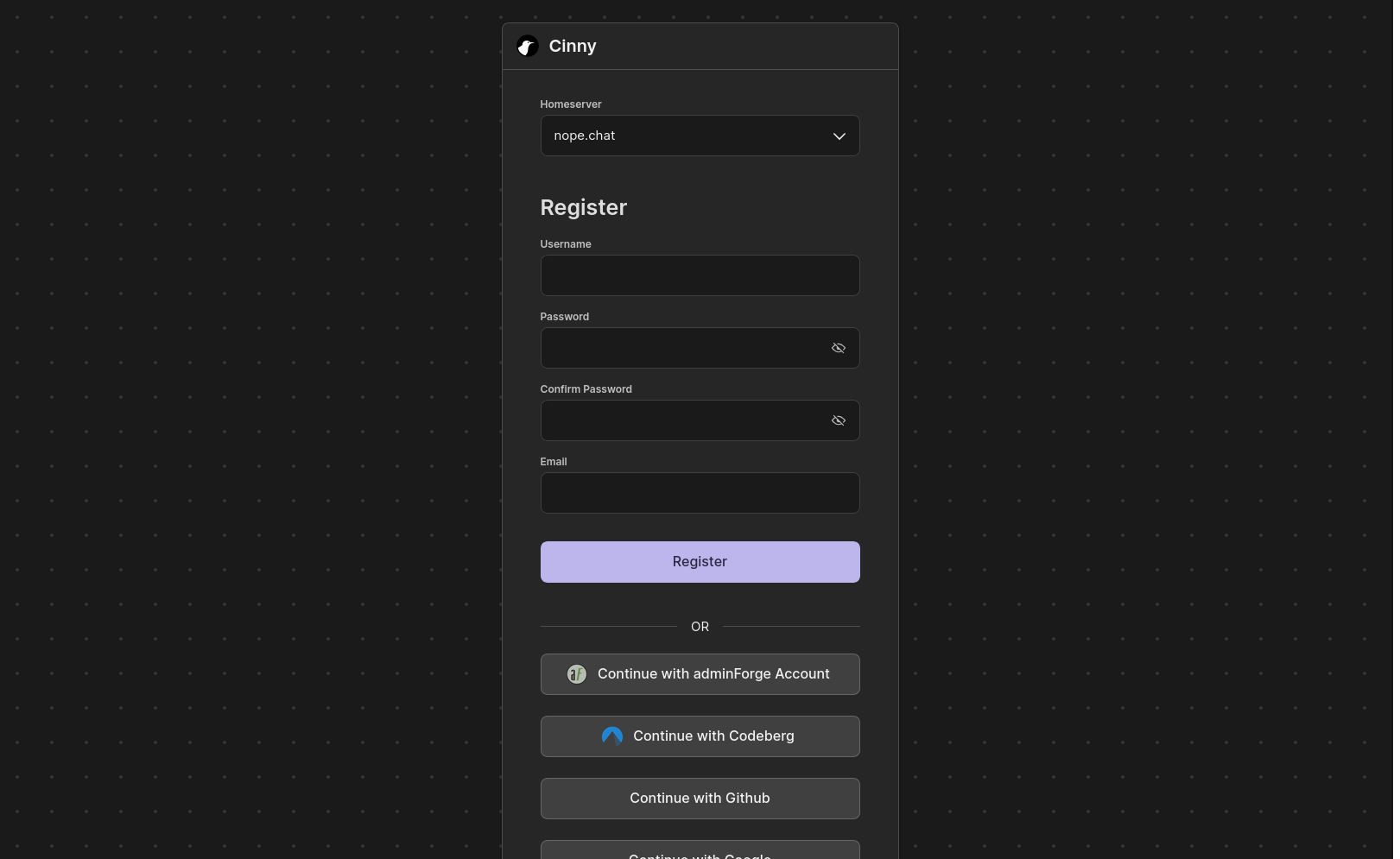
The first step is to create a Matrix account or log in with an existing one. If you already have an account, simply enter your homeserver address in the Homeserver field along with your login credentials.
If you do not yet have an account, click Register at the bottom. On the login page, enter the address of the homeserver where you wish to register or select one from the list under Homeserver. Some of the main public federated homeservers include matrix.org, converser.eu, tchncs.de, and nope.chat.
If you select matrix.org or converser.eu, click Continue with SSO and create an account on the dedicated website. Then return to https://cinny.whydoesit.work and log in with your newly created credentials, making sure to select the correct homeserver.
Creating or Joining a Space⌗
Matrix is organized around rooms and spaces. Rooms are the equivalent of Discord channels, whether text or voice. To group multiple rooms together, similar to a Discord server, you can create a space, which is simply a collection of rooms.
The main difference between Matrix spaces and Discord servers is that when you join a Matrix space, you do not automatically join all its rooms. Instead, you can choose individually which rooms you want to join within that space.
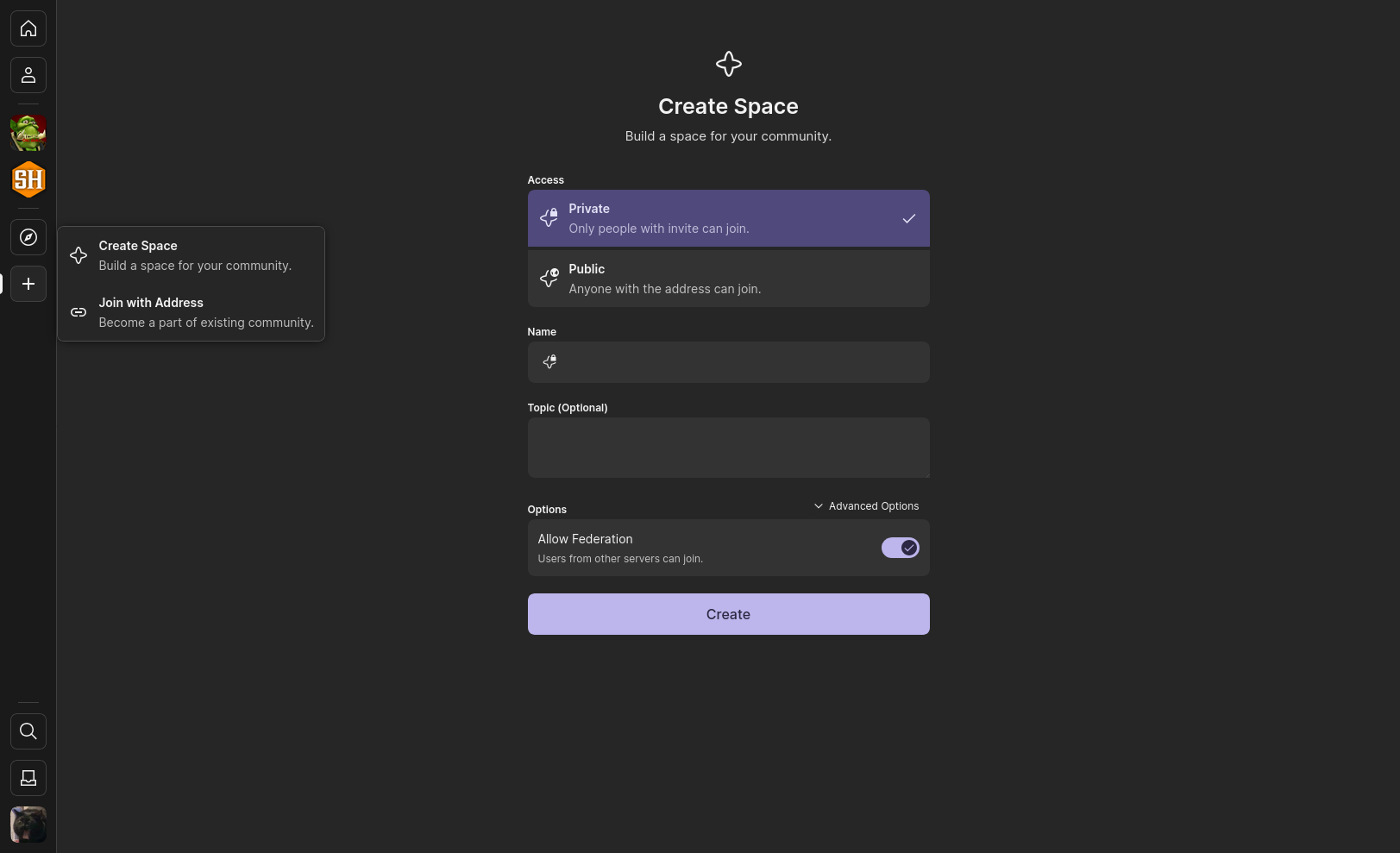
To create a space, click the + button in the left sidebar and select “Create Space.” Choose whether your space will be private (accessible only via invitation link) or public (open to everyone). Give it a name and decide whether to enable federation. Without federation, your space will only be accessible to users registered on the same homeserver as you.
Once created, your space will appear in the left sidebar. To invite someone, right-click it and select Invite, then enter their username in the format @username:abc.org (where abc.org is their homeserver). You can also select Copy Link to share an invitation link.
To join a space via link, copy the link, open Cinny, click +, select Join with Address, and paste the link into the field.
Creating a Room⌗
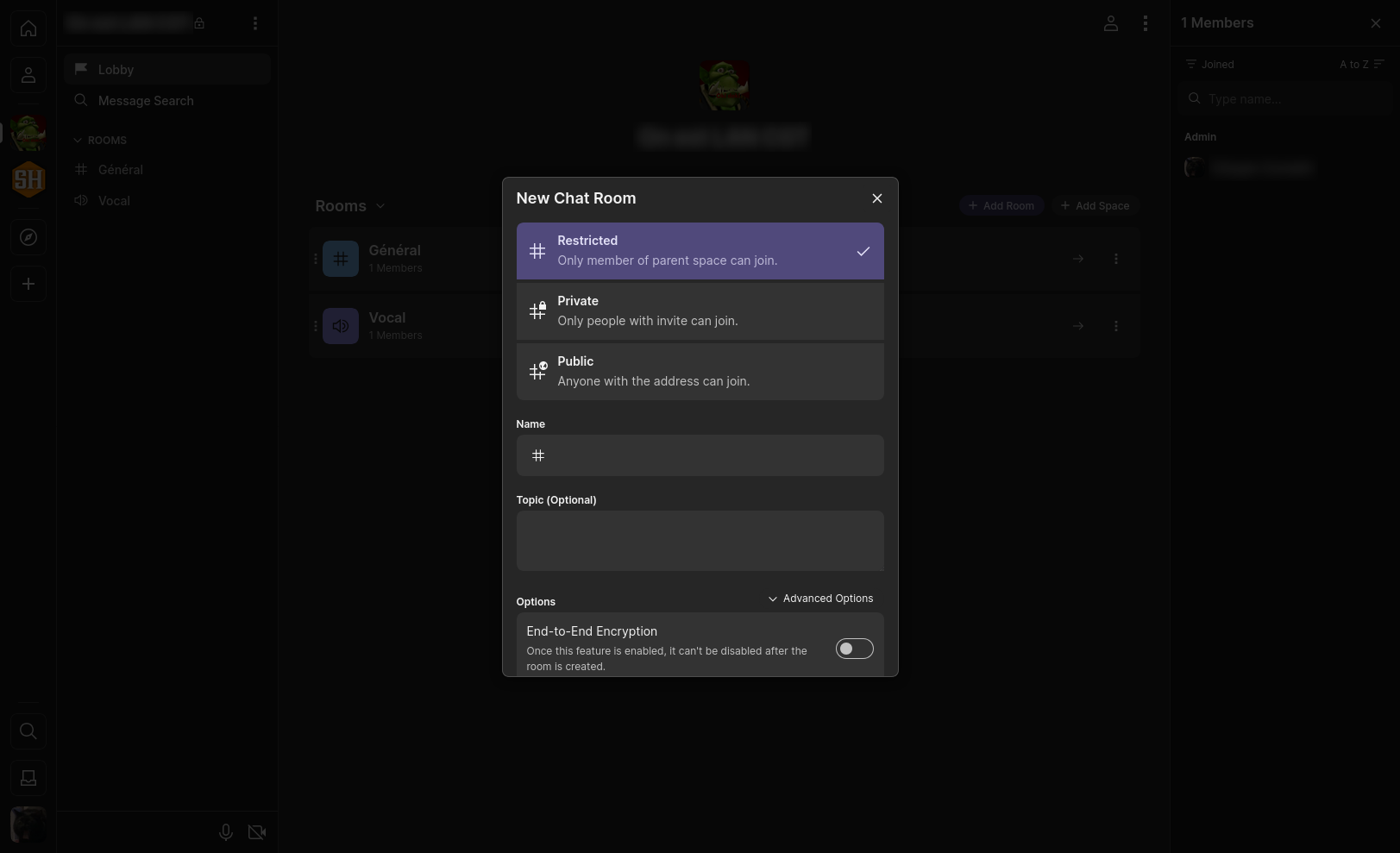
To create a room, go to your space and click Lobby at the top left. This is the homepage of your space, where you can add rooms. Click Add Room and select the type of room you wish to create.
In the window that opens, choose the room’s name and access restrictions:
- Restricted: accessible only to members of the space
- Private: accessible only by invitation
- Public: accessible to everyone, including non-members
You can also choose whether to enable end-to-end encryption by toggling End-to-End Encryption.
Once created, space members can join a restricted room via the lobby.
Here are a few quick notes for former Discord users:
- On Matrix, role management (admin, moderator, regular user) is handled at the room level, not the space level. Avoid creating too many roles, as you’ll need to replicate them across rooms.
- Like Discord, you can add custom emojis and stickers for your space via the space settings.
- Notifications can be managed individually for each room by right-clicking it.
- To use voice rooms, click the room name once to connect and a second time to open the call interface.
- You can also create a room outside of a space, functioning like a group chat. Click the home icon at the top left and select Create Room.
Private Messages⌗
To start a private chat, click the person icon at the top left and select Create Chat. Enter the username of the person you wish to contact. Once they accept, the conversation will appear in this tab.
Invitations to private chats, rooms, or spaces appear in your inbox, located just above your profile picture at the bottom left.
About End-to-End Encryption⌗
When you enable end-to-end encryption, messages are encrypted and unreadable to any software that does not have access to your account’s encryption key (essentially a hidden password).
This means that if you log out or log in from a new device, you will initially be unable to read your encrypted messages because the new device does not yet have the encryption key.
To regain access, you must verify your session so the server can securely transfer the encryption key to your new device.
To enable session verification, click your profile picture (bottom left), go to Devices, and under Device Verification, click Enable. Create an encryption password (different from your account password) and enter it. Then download your recovery key and store it safely: this will allow you to verify sessions if you lose your encryption password.
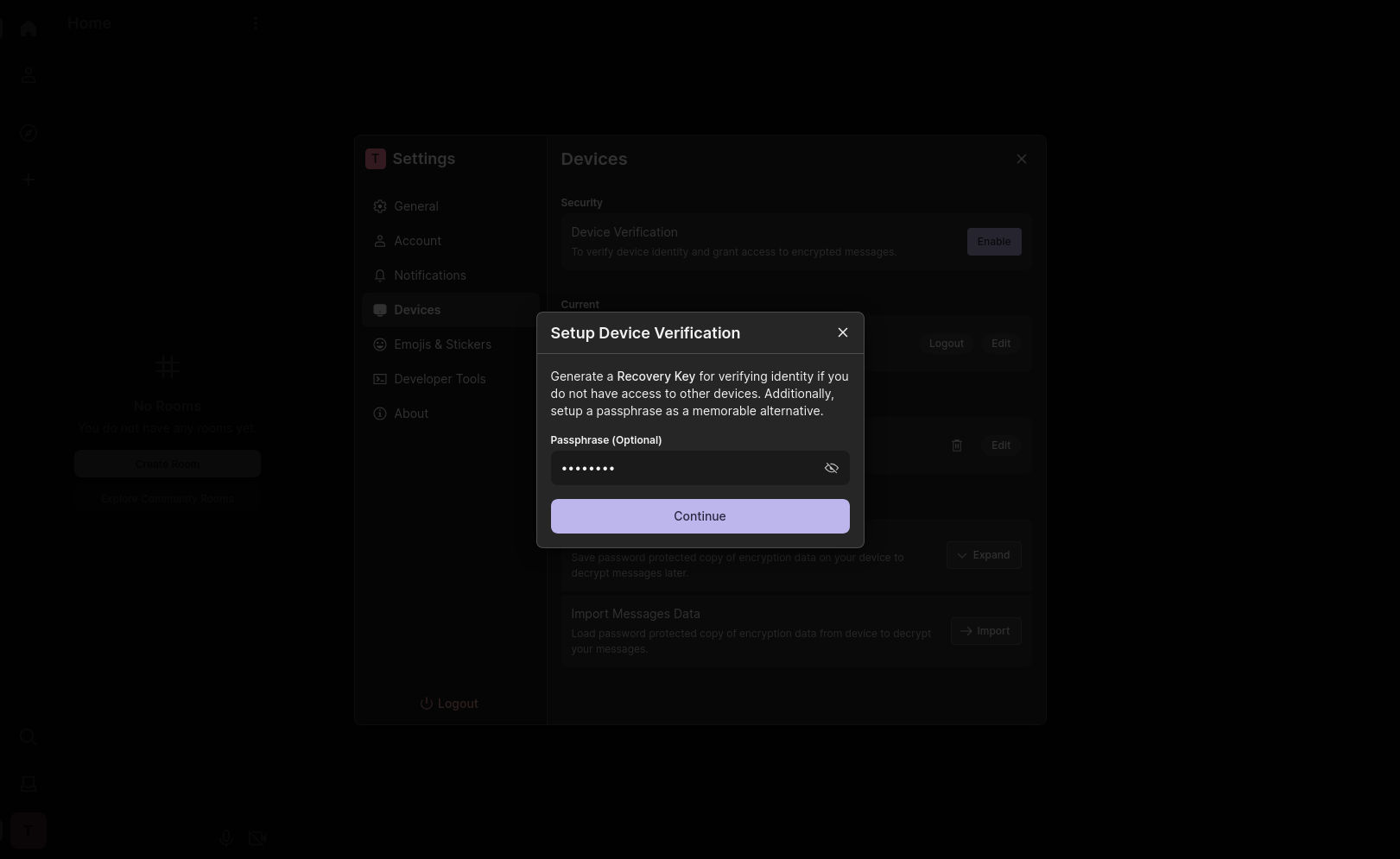
The next time you log in on a new device, you’ll see a red warning at the bottom left. Click it, select Verify Manually, and enter your encryption password to unlock access to your encrypted messages.

And that’s it, you’re ready to get started with Matrix and Cinny!
Since Cinny is still under development, expect occasional bugs. If you encounter issues with voice rooms, try switching browsers, for example between Firefox and Ungoogled Chromium. If you need a mobile app, Cinny is not yet available on mobile, but you can use alternatives such as Element X or FluffyChat.